More on Kubernetes.
So I decided to get right into working with Kubernetes because that does help with learning how to operate a cluster. It also gives context for further study. Before that, it is important to discuss some crucial components of a Kubernetes cluster.
These components are Services, Ingress, ConfigMap, Secrets, StatefulSet, Volume, and Deployments.
Every pod gets an IP address. Pods are ephemeral and can die quickly. If a pod dies, say, because the container crashes due to lack of resources, it would be recreated with a different IP address. That would be annoying to manage if you had other components that talk to that pod. So you use a Service. A service has its own IP address, and it can act like a proxy for the pods. The lifecycle of the pods and the service differs, so the service’s IP address won’t change if the pod is recreated.
Say you want the application to be available through a browser. You can create an internal service that you can use to connect one component to another within your application (e.g, a database), but have it not connect to the outside world. You can use an external service to have users connect to certain components of your cluster, say, the front-end application, but the address would look like 102.168.11.0:8080, which would make you seem like a scammer. So you need to use Ingress, which would have a more readable address and forward whichever request is sent to it to the appropriate destination. The service also acts as a load balancer, diverting traffic to an appropriate pod based on changing demands and available resources.
A ConfigMap acts as a store for configuration data useful for running the application. It is an external configuration for your Kubernetes cluster. Putting credentials into a ConfigMap in plain text is not advisable, though, but you can store these in Secrets. That does not mean that information is automatically secure in the secret, though. It is expected that the data is encrypted by a third party. A Secret is an external store for your application, specifically designed to store confidential information.
Remember when I said pods are ephemeral. What about the pod that holds your database? That would be inefficient as the data stored could be lost easily. You can use your Volume, a persistent way to manage data storage. A Volume is a directory that is accessible to all containers in a pod, providing a shared data storage that can survive container crashes. You can configure the data storage to be stored locally in the machine or in a remote location. That is not part of the cluster, but you can use a reference to it. Kubernetes does not manage data persistence. A database cannot be replicated with a deployment, as databases have states. So you need to ensure that the different clones of the database access the same storage and also manage which pods are writing to the storage and reading from the storage in order to avoid data inconsistencies. The controller that enables this is called a StatefulSet. StatefulSet is a controller that manages applications requiring persistent storage, stable network identities, and ordered deployment/scaling. It is used specifically for stateful applications. It allows for replication. It makes sure the database reads and writes asynchronously so that data inconsistencies are avoided.
Creating a local cluster
A good handle on operating a machine with Bash is very helpful when working with Kubernetes, as a fair number of nodes run Linux as their OS. You could use others, but Bash is usually your best bet, especially if you plan to attend a CKA or CKAD exam. Now, to practice, you do need a virtual node or a virtual machine, a virtual machine on your local machine. There are, I know of three options to get them easily.
We will be writing to files using bash. If you do not have bash on your computer, make sure to find another alternative, such as WSL, CMD, or similar. Or you can install git bash, which should work similarly.
We will begin by installing a very useful command-line tool called kubectl. This can be installed by following the instructions here. This tool has many commands that we can use to easily interact with the cluster.
Docker or similar is required for running Kubernetes clusters, as they are the technology responsible for running the containers. Follow the instructions in the links for Mac, Windows, or Linux. If you have successfully installed it, run docker version in your terminal to confirm. Open Docker Desktop and agree to the terms. Choose recommended settings and click Finish. Then you should be done.
Now we need a virtual machine that will host our clusters. Thankfully, there are some open source options to easily host a Kubernetes cluster on our machine.
The Docker route:
Docker gives us the ability to easily create a cluster and get started operating with the click of a button. Just open Docker Desktop, navigate to the Kubernetes page by clicking on the word in the sidebar. You should see a create button. Click it. And you are done.
MiniKube
This is a local Kubernetes cluster that enables you to learn and develop for Kubernetes. All you need is Docker (or similarly compatible) container or a Virtual Machine environment.
Follow the instructions here to get started. After run:
minikube start
Rauncher Desktop
If the other two give you issues, there is a third option I found that makes things easy to set up and manage Kubernetes on my device. It is an open-source application that provides all the essentials to work with containers and Kubernetes on the desktop. You can download an installer here. During installation, make sure DockerD and Kubernetes are enabled.
Lastly, you need a popular command tool for interacting with our Kubernetes clusters called kubectl. You can install through this link.
If you managed to get one of these configurations done, you should see some options when you run
kubectl config get-contexts
You can choose which cluster you wish to use by running:|
kubectl config use-context <cluster_name>
Now, create a new folder in your workspace with your project name. It is within this folder that we will keep all our deployment and configuration files.
Web application Demo
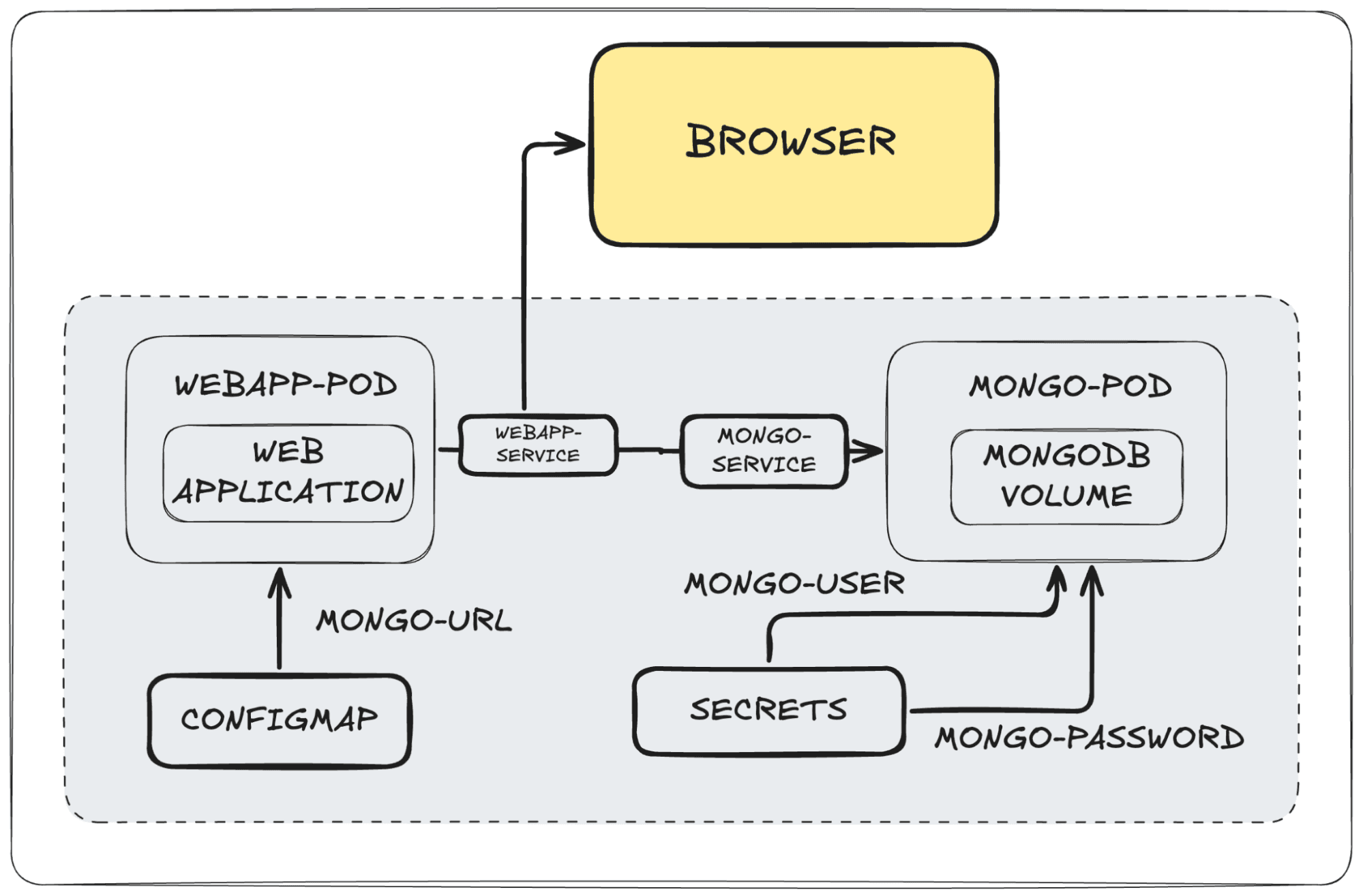
This section includes instructions to produce a simple cluster which host a web application that can be accessed from the browser. This will involve creating two deployments, one that will host the web app, which should connect to a pod created from a deployment for a MongoDB database. The web app will require configuration data, which it will get from a ConfigMap, and the mongo-user and mongo-password will be stored in a Secret. Both of these we will configure.
Creating our ConfigMap
We will now create our ConfigMap by defining it in YAML format. Run nano mongo-config.yaml and input the following text:
apiVersion: v1
kind: ConfigMap
metadata
  name: mongo-config
data:
  mongo-url: mongo-service
This is the configuration for the ConfigMap. Set the type of component in the kind value. Metadata is a key value object that the user can use to label the configmap with any tag they want. Set the configuration data values in the data object. This is also a key-value store. Mongo-service is the URL of a service that will be created for the MongoDB. Create the config map by running:
kubectl apply -f mongo-config.yaml
Confirm that the ConfigMap was created by running: kubectl get secrets
Next, we can configure the secret. Run nano mongo-secret.yaml and input the following text:
apiVersion: v1
kind: Secret
metadata:
  name: mongo-secret
type: Opaque
data:
  mongo-user:
  mongo-password:
We need an encrypted mongo-user and mongo-password. We can get that by running
echo -n mongo-user | base64
And,
echo -n mongo-password | base64
This will just convert mongo-user and mongo-password to base64. This is to simulate 3rd-party encryption. You can input that into the secret YAML file.
Run this to create the Secrets.
kubectl apply -f mongo-secret.yaml
Confirm that the secret was created by running: kubectl get secret
Now, let’s create the deployment for the MongoDB pod. Run vim mongo.yaml in your project directory. And write:
apiVersion: v1
kind: Deployment
metadata:
  name: mongodb-deployment
  labels:
    app: mongo
spec:
  replicas: 1
  selector:
    matchLabels:
      app: mongo
  template:
    metadata:
      app: mongo
    spec:
      containers:
      - name: mongo
        image: mongo
        ports:
        - containerPort: 27017
        env:
        - name: MONGO_INITDBROOT_USERNAME
          valueFrom:
            secretKeyRef:
              name: mongo-secret
              key: mongo-user
        - name: MONGO_INITDBROOT_PASSWORD
          valueFrom:
            secretKeyRef:
              name: mongo-secret
              key: mongo-password
This should define the deployment for running a MongoDB container. I know we mentioned using ReplicaSets for stateful containers, but we are just running a demo for now. I will come back to it later. Now, under the text already written in the same file, input this:
—------------------------------------
apiVersion: v1
kind: Service
metadata:
  name: mongo-service
spec:
  selector:
    matchLabels:
      app: mongo
  type: LoadBalancer
  ports:
  - protocol: TCP
    port: 80
    targetPort: 27017
Create the deployment for MongoDB by running:
kubectl apply -f mongo.yaml
You can check if the code was successful by running: kubectl get deployment
You can get specifications on the pod by running: kubectl describe pod <pod_name>
Now let’s create a deployment YAML file for our WebApp. Run nano webapp.yaml and input:
apiVersion: v1
kind: Deployment
metadata:
  name: webapp
  labels:
    app: webapp
spec:
  replicas: 3
  selector:
    matchLabels:
      app: webapp
  template:
    metadata:
      app: webapp
    spec:
      containers:
      - name: webapp
        image: nanajanashia/k8s-demo-app
        ports:
        - containerPort: 3000
        env:
        - name: USER_NAME
          valueFrom:
            secretKeyRef:
              name: mongo-secret
              key: mongo-user
        - name: USER_PWD
          valueFrom:
            secretKeyRef:
              name: mongo-secret
              key: mongo-password
        - name: DB_URL
          valueFrom:
            configMapKeyRef:
              name: mongo-config
              key: mongo-url
We configure the service by adding the following:
—----------------------------
apiVersion: v1
kind: Service
metadata:
  name: mongo-service
spec:
  Type: NodePort
  selector:
    matchLabels:
      app: webapp
  type: LoadBalancer
  ports:
  - protocol: TCP
    port: 3000
    targetPort: 3000
    nodePort: 30100
Great, now we can deploy our web app to the cluster.
kubectl apply -f webapp.yaml
Check if the pods have been created. Run kubectl get pod
You should see three pods for the webapp.
And in the description, you should see the port 30100:3000. Check the IP of your cluster. For Docker, you can get it from the Docker Desktop app. For minikube, you get it by running minikube ip. For the Raucher desktop, click on Cluster Dashboard in the sidebar. A window should pop up. In the sidebar of the new window, you should see a cluster accordion; expand it, and you should see the Nodes link. Open the nodes page, and you should see the IP for the current cluster.
Now, in your browser, you can open <CLUSTER_IP>:30100, and you should see the web app.
This article was inspired by Nana Janashia’s video on Kubernetes. You can see it here. Check here for Kubernetes docs if you want to learn more.